
How to install SteamOS
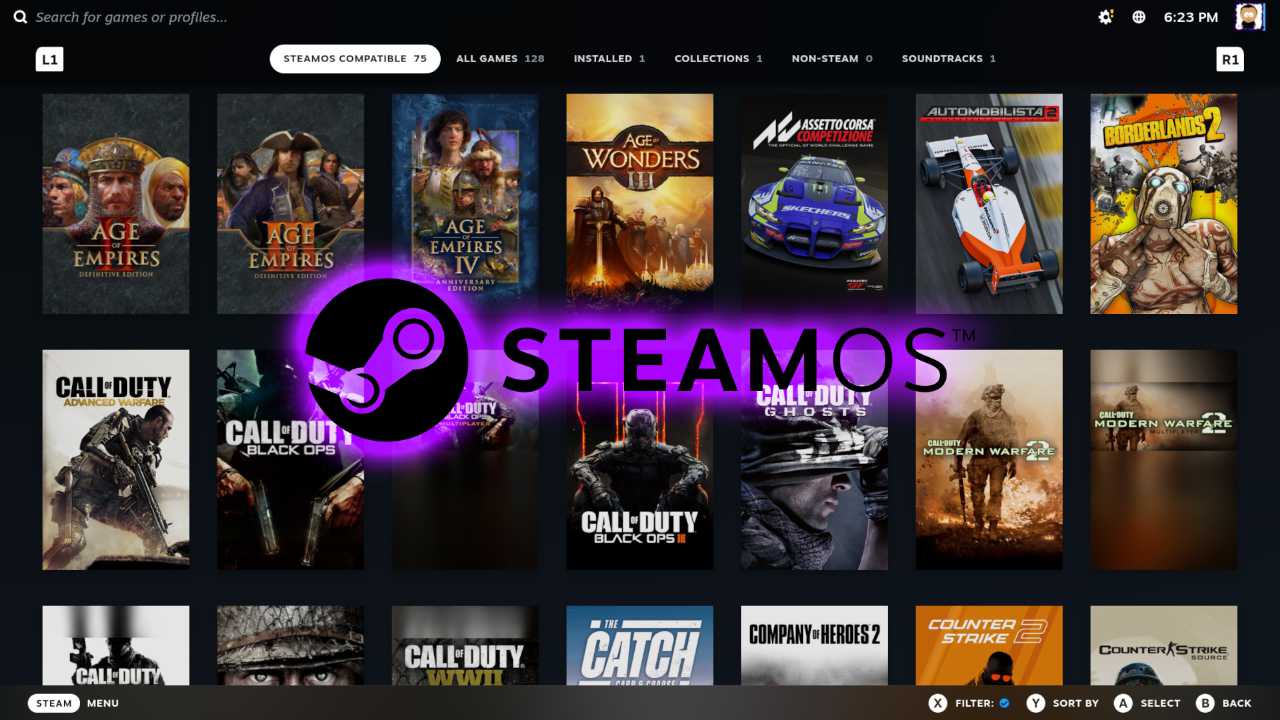
Valve released their Steam Machine recently, but since it's not exactly cheap at a starting price of £879 for the base model, building your own may be an option for many.
This is a very quick guide on how to install SteamOS on a regular PC that would have been running Windows or maybe Linux.
What is SteamOS?
Before jumping into the installation, you need to know a few things about SteamOS that may or may not change your mind about this plan of building your own SteamOS-based gaming console.
SteamOS is a Linux distribution built by Valve, the same people that brings you the Steam gaming distribution platform. This means that all of your Steam games will be available on SteamOS, but not all of them may be compatible. For example, iRacing is a popular racing sim that is available on Steam but does not work on SteamOS.
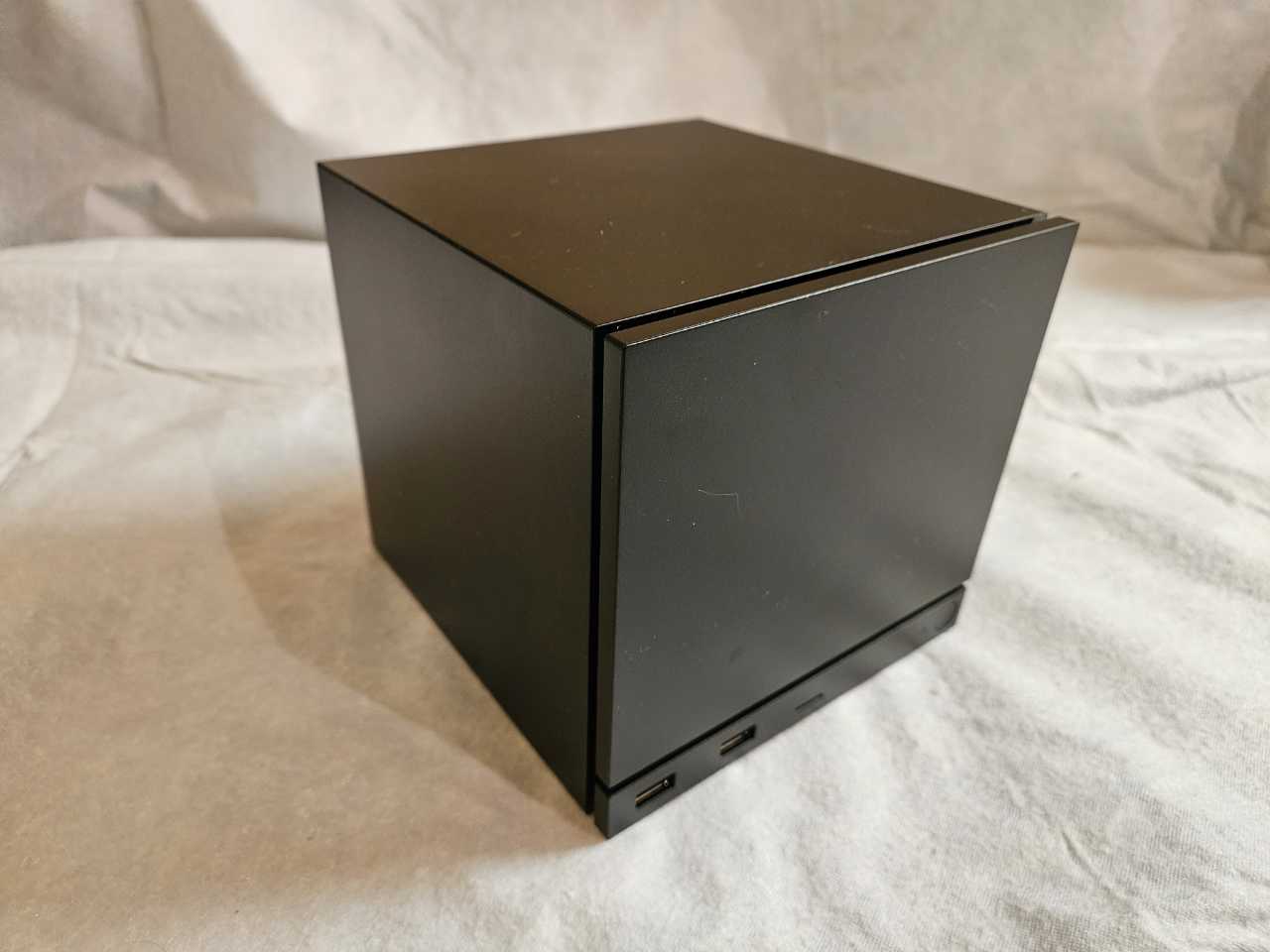
SteamOS use Proton to allow for Windows-only games to run on Linux, but due to a variety of reasons, some games just don't want to play ball. This means that you need to be aware that not all of the games in your Steam library will be playable. We suggest that you pop into ProtonDB to confirm compatibility.
SteamOS is based on Arch ,but unlike Arch, it's actually an immutable distribution, which essentially means that main system files are not accessible to the user for modification. For most users, this won't be a problem, but we suggest that if you plan to use SteamOS as a proper desktop for productivity as well as gaming, then Bazzite may be a better option.
SteamOS works on both Intel and AMD CPUs but does not work on Nvidia GPUs.
Installation
To install SteamOS, you will need an 8GB or larger USB flash drive, a utility like Rufus or Balena Etcher for creating aUSB installer and compatible hardware. We suggest an intel or AMD CPU with dedicated AMD graphics for the best experience. NVMe storage is a requirement for the default installer, but this can be bypassed, and a regular SATA storage may be used instead.
We set up a small SteamOS wiki here that includes info on how to bypass the NVMe requirement, along with a few other helpful tips and tricks.
Download the SteamOS image from here and create the installer. Boot up your PC and select the USB drive to start the process.
SteamOS will boot, and you'll eventually reach the desktop with several shortcuts on it. Choose the shortcut called “Wipe Device and Install SteamOS”, and it will start the installer.
WARNING: Running this shortcut will start the SteamOS and delete everything on the system drive. This means that if you have Windows installed on the NVMe drive that's on your computer, the SteamOS installer will wipe the drive. Backup your data, or it will be lost.
Once the installer has been completed, it will reboot and you'll be in SteamOS. You'll have to select your language, choose your internet connection, log in to your Steam account, etc and then start downloading your games.
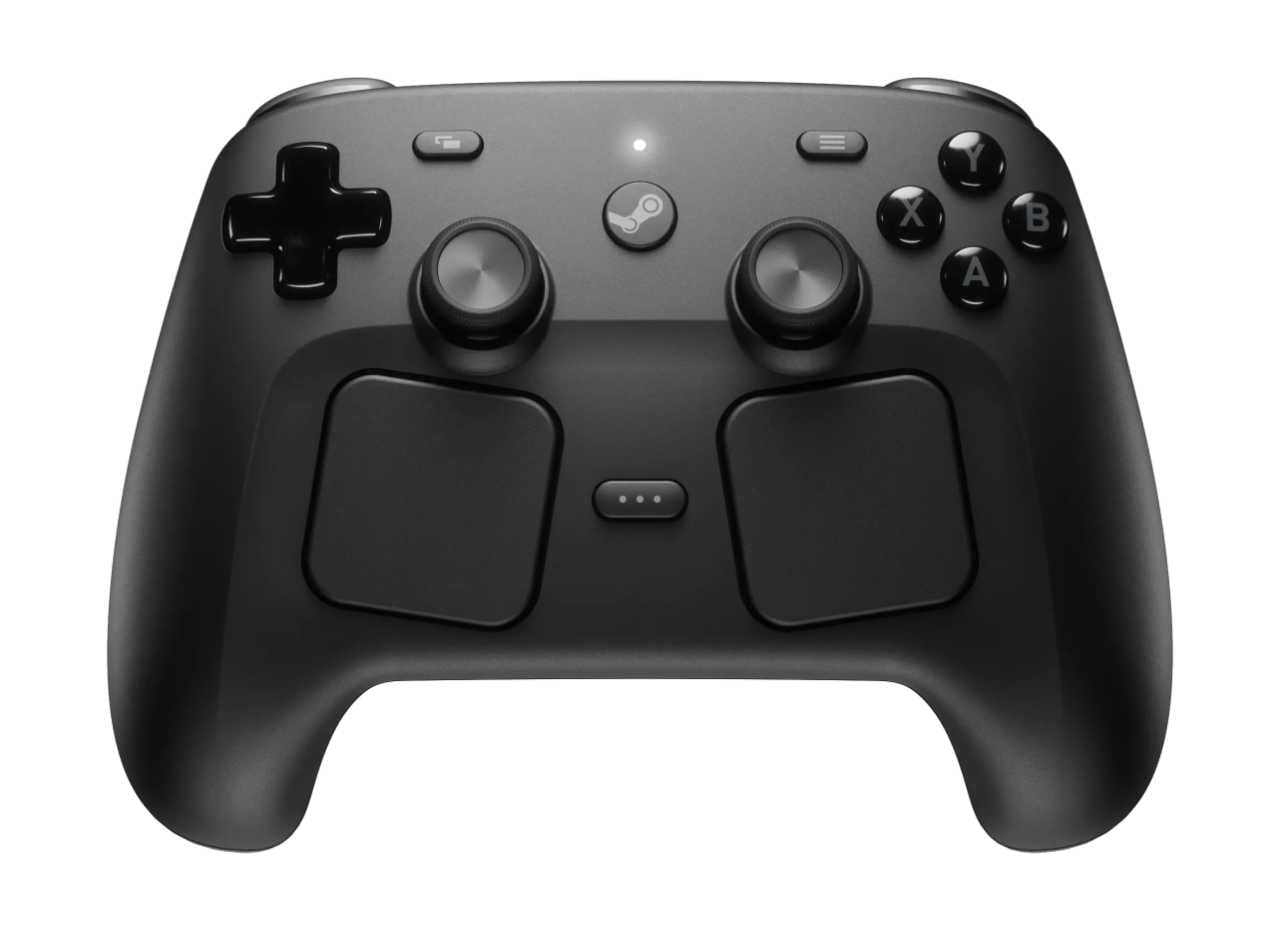
SteamOS in game mode works best with a gamepad like a PlayStation or Xbox controller. The official Steam controller will be ideal, but in general, any Bluetooth controller should work. That also means that the computer you're installing SteamOS on must have Bluetooth. If it's a desktop PC, then you can plug in a cheap USB Bluetooth dongle.
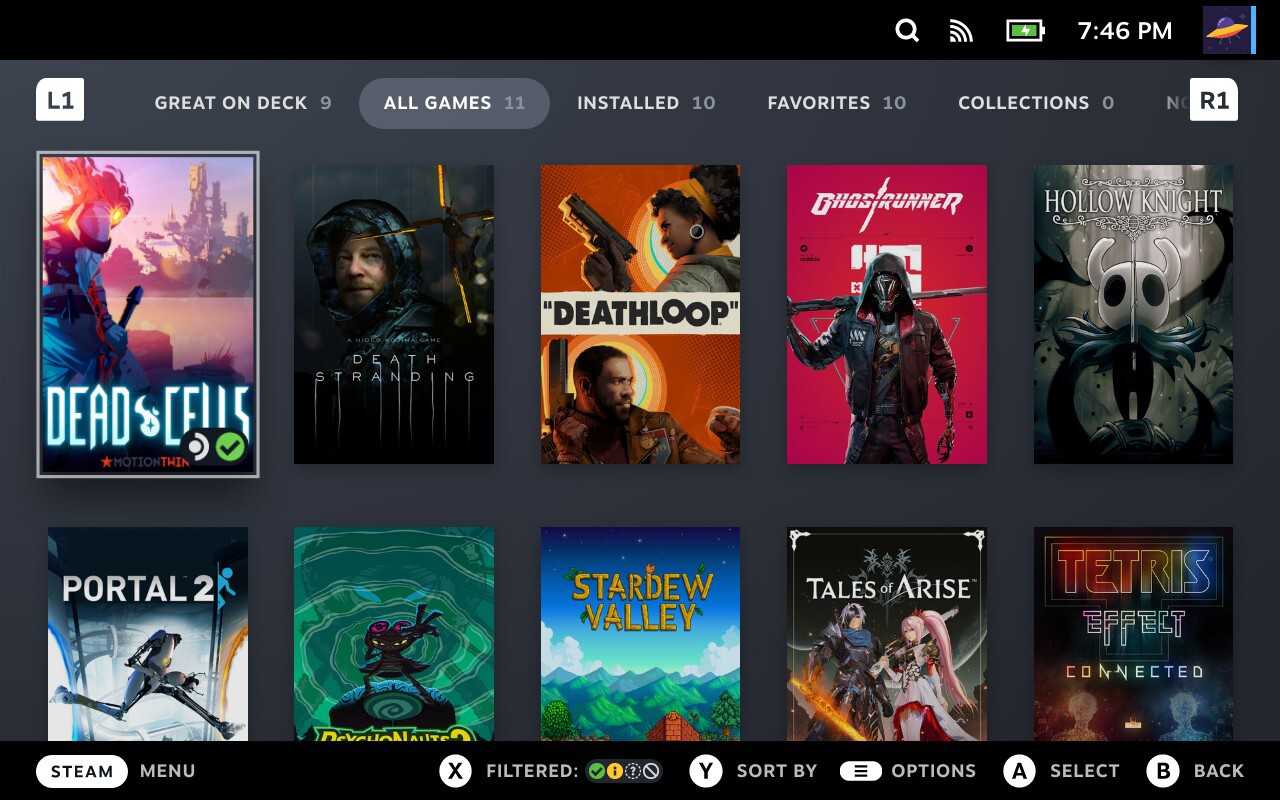
SteamOS in game mode looks similar to a Playstation or Xbox's interface.
Our test system comprises an Intel 9900K CPU, AMD Radeon 5700XT GPU, MSI Z390 motherboard with 32GB RAM. SteamOS works great on this system with only one issue that we still need to resolve: the system goes into sleep mode perfectly fine but if you wake it, it powers up but the screen shows no display. This is a known issue that we should be able to fix. We will update this article once we've fixed and what we did to resolve the issue.
Performance is fantastic and playing games from the couch using a controller is just like gaming on a console. We tried playing games on a TV and on a high refresh rate (165Hz) monitor and the system worked perfectly on both.
Updates work the same as on a SteamDeck or Steam Machine. SteamOS notifies you if there's an update available and once you choose to run the update, it downlaods and installs it seamlessly.
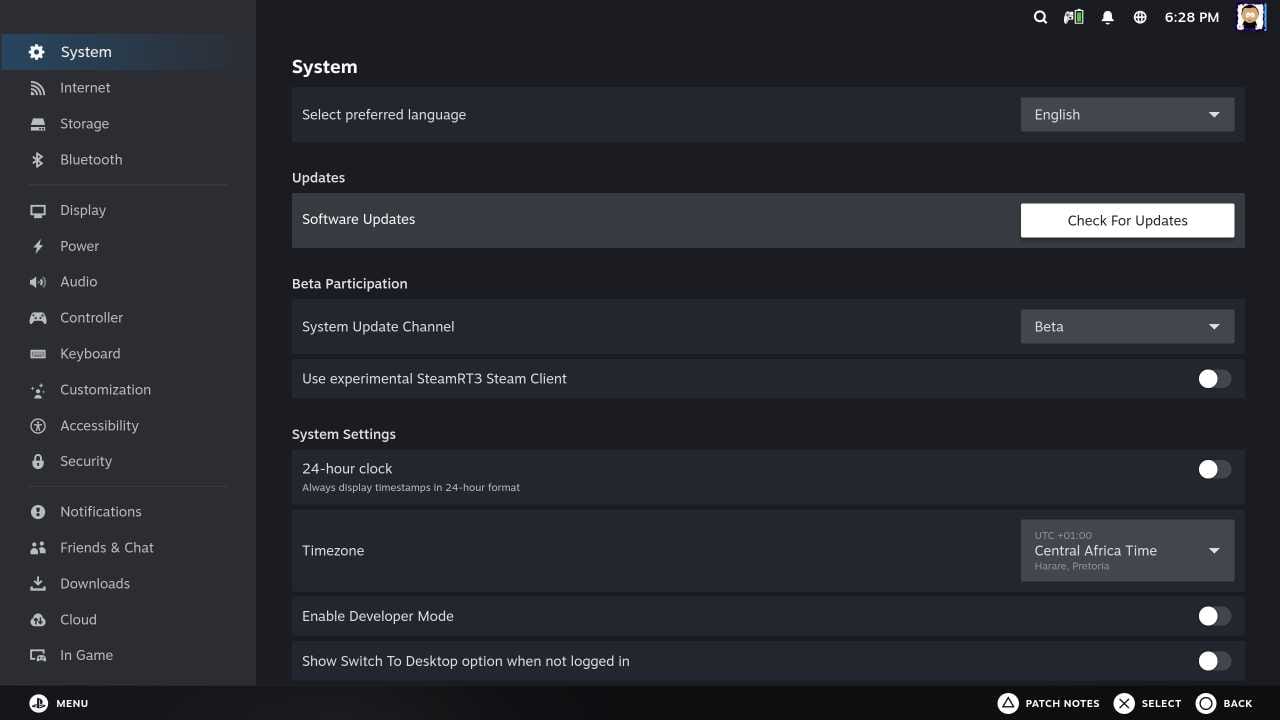
We're currently running SteamOS on a system that we use for Linux testing, video editing, gaming etc and plan to build a dedicated computer for SteamOS. The aim will be to use components that will work with SteamOS but focus on 1080p gaming. This will allow us to get a decent gaming experience without breaking the bank.
We'll be writing a lot more articles on SteamOS in the future and cover all of the apsects of building a system and configuring it to work as close as possible to Valve's Steam Machine.
Comments ()